
Infographics and Data Visualization
Overview
Data Visualization
Data visualization is the visual display of quantitative information. A good data visualization will make it easy for the viewer to interpret complex information, notice patterns in data, and identify key takeaways.
Maps
Maps are a form of data visualization and infographics that use diagrammatic representations of land or water. Maps can show geographical markers (such as landmarks, roads, elevation, etc.) or be used in conjunction with a data set to represent information geographically. Maps themselves can be considered a form of infographics, but may also be a component of a larger infographic.
Infographics
Infographics (or information graphics) tell a story about a topic using one or more data visualizations and other visual elements. Infographics can include text, graphs, charts, diagrams, tables, maps, lists, and other forms of data visualization. The goals of infographics are varied, with some intended to provide information, others intended to persuade or call the audience to action. Typically, infographics are designed for viewing on digital devices (phones/tablets) and displayed on social media. As a result, many infographics are oriented vertically to take advantage of the scrolling interface used by these devices and platforms, but not all infographics use this layout.
There are many ways to organize data visualizations into an infographic. The layout you choose for your infographic will depend on the information you want to include and how the infographic will be shared.
An infographic can focus on just one visualization—a Singular layout. This kind of infographic allows the viewer to focus on a single dataset, which can be useful when the data visualization is dense or complex. It may also be a good choice if the infographic will be encountered in passing, such as on social media or on a flier. A singular layout is intended to be easy to read at a glance.
More commonly, infographics combine multiple data visualizations. Broadly, these can be described as either composite or long form. Composite infographics assemble individual visualizations into one large panel, often in a grid. Sometimes, one large visualization is complemented by several smaller charts or callout boxes. Composite infographics are most effective when you’re exploring different angles on a single topic, and for print applications.
Long-form refers specifically to composite infographics that stack visualizations vertically or, more rarely, horizontally. This format is effective for telling a story that happens over time. It can also work well on online platforms where users are accustomed to scrolling through content, such as social media. However, for the same reason, horizontal long-form visualizations aren’t well suited to digital media.
No matter which infographic format you choose, make sure you follow best practices for data visualization.
*Please note that these recommendations are for beginners in data visualization only. There are many more advanced options not listed here because they have a steep learning curve.

Datawrapper: This free, web-based data visualization tool is designed to create interactive charts, responsive maps, and tables. It requires no coding or design skills, making it popular among journalists, researchers, and governments to embed clean graphics into web pages. It is designed with strict adherence to data visualization best practices so users avoid common design errors. The free account tier allows you to create online visualizations and download them as PNG files.

Tableau: This data visualization tool enables users to interact with data through dynamic dashboards, maps, and other presentation formats. The public version of Tableau is free to use. The full version of Tableau is not free, but students can get a free 1-year trial. The Universities of Wisconsin have a Tableau Server with many datasets and visualizations.

BioRender: This is an online tool to help scientists create and share beautiful, professional scientific figures. There is a free tier for educational use, as well as individual and lab pricing. The free account tier allows only 5 active projects at a time and does not grant permission to publish in journals.

Microsoft Excel: This spreadsheet software is the industry standard for numbers and accounting and allows you to create customized data visualizations. Its basic visualizations are often not aesthetically pleasing, but you can manipulate them to improve their appearance. Similar programs are the online-based Google Sheets and Apple’s Numbers. Microsoft Excel is available for free to all UW–Madison students, faculty, and staff via UW–Madison’s Office 365. It is also available via the UW–Madison computer labs, both in the lab and for checkout.

My Maps by Google: This is a free, online map-making application for making custom Google Maps that highlight places of interest with personalized icons and colors. You can also draw on the maps. My Maps are all online and designed for sharing. All maps are stored on your Google Drive and are also accessible under Google Maps > “My Places.” You can easily invite colleagues to edit, suggest edits, comment, or add their own points. My Maps is available to anyone with a Google account.

Google Earth: This free application renders maps of the Earth, moon, and Mars by superimposing satellite imagery, aerial photography, and GIS data onto a 3D globe, allowing users to view cities and landscapes from various angles. With its creation tools, you can draw on the map, add your photos and videos, customize your view, and share and collaborate with others. You can also create “fly-throughs” of various locations.

NatGeo MapMaker Interactive: This free online custom map maker lets you highlight places of interest with personalized icons/images and drawings on one of seven base maps. You can also add built-in layers to the map, such as climate data. You need to “Save As” to have your map link sent to you as an email. All maps are housed on the NatGeo server, but after 6 months of inactivity, your projects may be deleted.

ArcGIS: This software is the industry-standard program for spatial data (i.e., it is map-creation software). Many base maps are open source, but the program itself is not. ArcGIS is available to UW–Madison students, faculty, and staff via the UW–Madison computer labs. There is also an online program called StoryMaps that creates interactive maps.

Piktochart: This is another online graphic design platform similar to Canva, but with better tools for creating charts, maps, and graphs. While the program has paid features, you can typically make all your documents with the free account. This platform also comes with a built-in database of free images and icons, and allows you to upload your own content. Your files are saved to your account and stored on the Piktochart server, but the free account has a maximum of 5 active documents. You can also download the files in select formats.
BioRender: This is an online tool to help scientists create and share beautiful, professional scientific figures. There is a free tier for educational use, as well as individual and lab pricing. The free account tier allows only 5 active projects at a time and does not grant permission to publish in journals.

Canva: This online graphic design platform is a great place to make visually stunning infographics and more. While Canva has paid features, you can typically make all your documents with a free account. This platform also comes with a built-in database of free images and icons and allows you to upload your own content. Your files are saved to your online account and kept on the Canva server. You can download the files in multiple formats depending on the project.

Adobe Illustrator: This program is a graphics editor, typically used for vector (line-based) images. Adobe Illustrator can be used for creating infographics from scratch. This program is available to UW–Madison students, faculty, and staff via the UW–Madison computer labs, both in the lab and for checkout, and is available for both Windows and Mac computers.

Microsoft PowerPoint: This slideshow software is best known for slideshow creation, but the slides can be resized for infographic formats. PowerPoint allows for easy drag-and-drop arrangement of elements and text, making it easier to design infographics from scratch. PowerPoint is free for all UW–Madison students, faculty, and staff via UW–Madison’s Office 365. It is also available in the UW–Madison computer labs, both in the lab and for checkout.
Best Practices for Data Visualization
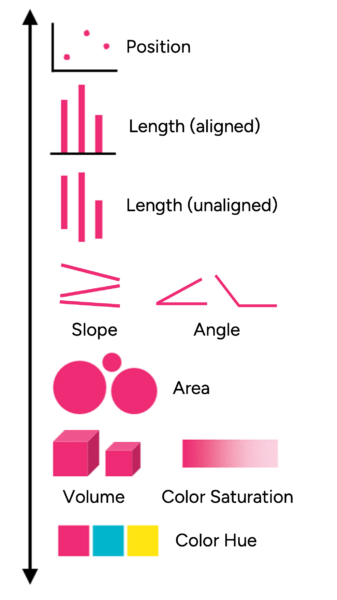
There are many ways to visually communicate variations in data sets. For example, weather maps use color to show differences in temperature, pressure, and precipitation across an area. Not every approach to data visualization is made equal. A landmark study by Cleveland and McGill (1980) found that viewers interpret some kinds of visualizations more accurately than others. They found that position (points on a graph or map) and length (such as in bar graphs) are the easiest to interpret accurately, whereas volume (increased size corresponding to increased number) and color (both hue and saturation) are the most difficult to interpret accurately. Here is a helpful chart we’ve created (based on a chart from an Intro Data Viz course) to demonstrate the ease of understanding:
Easiest to interpret
Hardest to interpret
This study and its evidence do not mean that you should use only bar charts, maps, or scatter plots to represent data. But if your data is complex and requires careful interpretation, consider using a visualization strategy that is easier to interpret, rather than relying on color or volume.
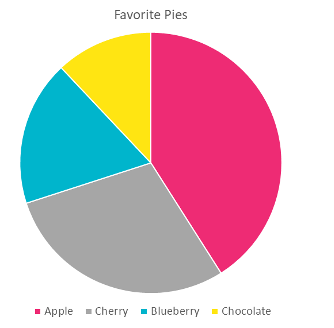
Pie and donut charts are everywhere! They visualize data by using angles (not area!) to represent parts of a whole. Generally, interpreting angles falls into the middle of the accuracy chart above. One reason is that there is no scale or axis to guide understanding.
Take a look at this pie chart to the right about our favorite pies.
At a glance, we can tell that the Chocolate pie is the smallest and the Apple pie is the largest. However, without additional information, we cannot accurately estimate the percentages for these sections. For example, the Apple pie appears to be about one-third (⅓) of the chart, and the Cherry pie is about one-quarter (¼). To accurately interpret the pie chart, we need percentage labels, which almost defeats the purpose of using a pie chart; there are better ways to represent this data visually.
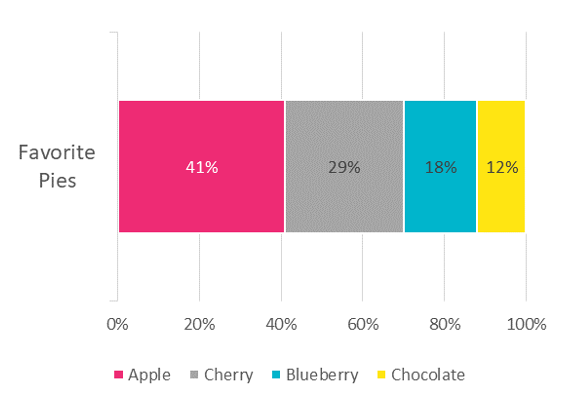
In general, it is best to use a pie chart or donut chart only when representing two categories, one of which is larger than the other. That way, a viewer can quickly see which category makes up the majority, and the accuracy of interpreting the numbers is less important. If you have more than two categories, consider using another visualization approach, such as a horizontal stacked bar chart.
When representing our favorite pies in this chart, we don’t need numerical labels to interpret the data, as the axis labels (%) guide our understanding.
The stacked bar chart in the previous panel is easier to read accurately than a pie chart, but the visual noise does not help communicate the data. Let’s see how we might improve it further.
Even though it is not useful for accurately representing numerical differences, color is a really powerful tool for storytelling in data visualization. In the charts above, color is being used to distinguish categories. This is necessary because the category labels are in a key below the chart, rather than directly labeled in the charts. Although practical in that form, the colors don’t carry any real meaning in relation to the categories (in this case, types of pies) they represent and could potentially distract the audience from the actual information.
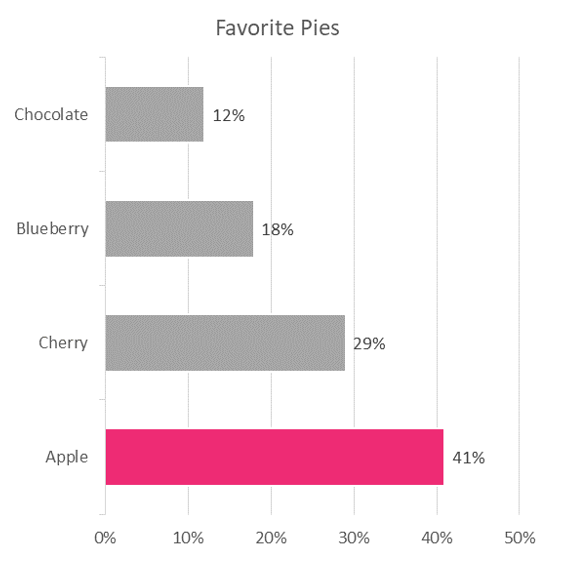
Let’s imagine that we want to tell a story about the most popular pie flavor. We can separate the different categories into individual bars and label the data directly. Then we can strategically use color to emphasize our argument that Apple pie is clearly the best pie. We can make a really strong visual argument by highlighting only Apple pie with color:
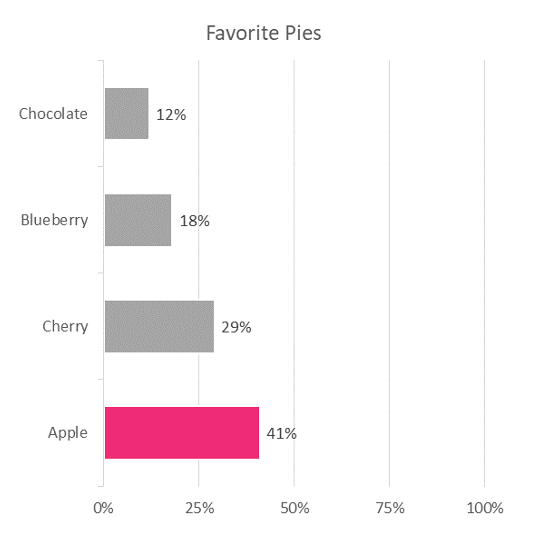
In the previous panel on the use of color, you’ll notice that the x-axis only goes up to 50% because none of our data points exceed 41%. As a result, the differences among our four pie categories are exaggerated. This can be a powerful tool for providing emphasis, but can also be considered misleading. If the absolute value of these favorite pies is important, we might want to set the x-axis to go from the minimum to the maximum possible value — in this case, 0% to 100%, as is shown below.
The downside to this type of representation is that there is now an excess of negative space. The question of scaling vs. absolute values often depends on the information presented and the norms of your field. From a design perspective, the scaled access is preferable because it fills the chart, but from an ethical data representation perspective, it may skew the understanding of the data.
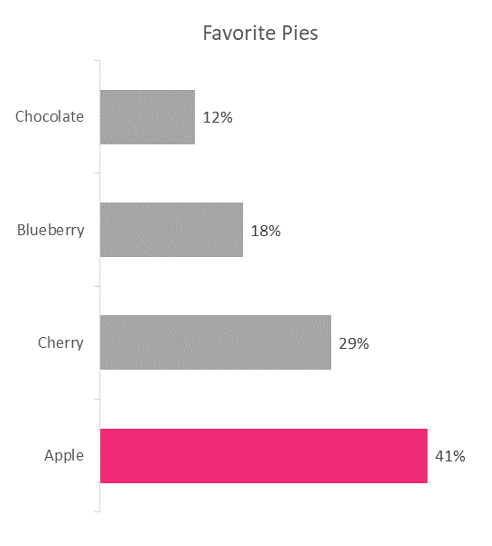
A good data visualization uses ink or pixels sparingly. It is important to visually represent only what is necessary for the viewer to understand the information. Visual variation without meaning (eg., using different colors or line widths) can distract from the important information that you intentionally visualized. Or, even worse, it might lead viewers to draw the wrong conclusions. A busy visualization with too much variation muddies the message of the data.
Another thing to consider is what is necessary to include in a data visualization. Do you need axes, labels, etc. From a design perspective, reducing visual “noise” or things that can distract from the main information is key to quickly guiding the audience to understand your data visualization. For example, in our chart about favorite pies, do we even need an x-axis? With our data labels, it isn’t necessary, so we can remove it to reduce the visual noise.
The choice to remove noise or excess information will need to be guided by the medium in which the data is being visualized as well as the norms of your field. For example, if you were to put this chart on a PowerPoint slide, the stripped-down version above is better because you, as the presenter, can guide your audience to understanding without axis lines/scales. However, if this visualization were to be included in an academic paper, it might be better to include the axis lines since they will need to interpret the visual on their own.
Student-Made Examples
Data Visualization
Data Visualization
Infographic / Map
Map
Infographic (Long Form Vertical)
Infographic (Long Form Horizontal)
Other Examples and Links
Examples: Information is Beautiful
Examples: Flowing Data
Examples: D3 Gallery (on Observable)
Guide: A Complete Overview of the Best Data Visualization Tools
Handout: Choosing the Right Chart
Examples: 21 Mind-Blowing Map Examples from the Web
Examples: 30 Superb Examples of Infographic Maps
Guide: Making Maps 101