Research Posters
Overview
Informational and scientific posters convey research and knowledge through a combination of printed text, data visualizations, and images. Researchers often use posters to present and discuss their work with others at conferences and symposiums. Posters may contain embedded infographics, charts/graphs, maps, and photographs. Their overall organization varies across fields, ranging from sparse and simple to dense and complex.
Standard research posters are often in the landscape orientation (length is longer than height), although posters can also be square or in the portrait orientation. Many conference posters are in a 4:3 aspect ratio (4 ft wide and 3 ft tall); however, be sure to check with your conference/symposium to determine the recommended/required poster size. If this information is not readily available, we also recommend calling the venue to ask how large their poster holders are.
If you’ve never created a research poster before, talk to a colleague, mentor, or advisor for their recommendations or to see an example of their past work. Also, your organization may have its own template or required colors and logos. For example, UW–Madison has an entire website for its brand that includes UW logos for print, as well as recommended colors and fonts.
There are also many software programs available for creating posters. Below is a list of software we recommend for creating a research poster. We put the software in order from easiest to use near the top to most difficult near the bottom. We recommend using software you know well, or learning it well enough to establish an easy workflow, so you can spend less time troubleshooting and more time on your poster. Check out our Software Support page for links to tutorials for all of these programs.

Microsoft PowerPoint: This slideshow software is best known for creating slideshows, but slides can be resized to any poster size. Unlike Microsoft Word, PowerPoint allows for easy drag-and-drop arrangement of elements and text, making it easier to design research posters than many other programs. PowerPoint is free for all UW–Madison students, faculty, and staff via UW–Madison’s Office 365. It is also available in the UW–Madison computer labs, both in the lab and for checkout.

Google Slides: This slideshow software is Google’s version of Microsoft PowerPoint. Google Slides is entirely online and designed for collaboration. All documents are housed on Google Drive, so you can easily invite colleagues to edit, suggest edits, and/or comment. Google Slides is available for free to all UW–Madison students, faculty, and staff via the UW–Madison G Suite.

Canva: This online graphic design platform is a great place to make visually stunning posters. While Canva has paid features, you can typically make all your documents with a free account. This platform also comes with a built-in database of free images and icons and allows you to upload your own content. Your files are saved to your online account and kept on the Canva server. You can download the files in multiple formats depending on the project.

Piktochart: Another online graphic design platform similar to Canva. While the program has paid features, you can typically make all your projects with the free account. This platform also comes with a built-in database of free images and icons, and allows you to upload your own content. Your files are saved to your account and stored on the Piktochart server, but the free account has a maximum of 5 active documents. You can also download the files in select formats.

Adobe InDesign: This program is a document creator, typically used for creating print materials. Adobe InDesign can be used for magazines and research posters. This program is available to UW–Madison students, faculty, and staff via the UW–Madison computer labs, both in the lab and for checkout, and is available for both Windows and Mac computers. With its layers and template tools, this is one of the best options for creating posters if you know the software or have time to learn it.

Adobe Illustrator: This program is a graphics editor, typically used for vector (line-based) images. Adobe Illustrator can also be used for research posters and is an alternative if you don’t know InDesign. This program is available to UW–Madison students, faculty, and staff via the UW–Madison computer labs, both in the lab and for checkout, and is available for both Windows and Mac computers.

Adobe Photoshop: This program is a graphics editor, typically used for raster (pixel-based) images. With layers and plenty of photo-editing capabilities, this is another good alternative for creating posters. This program is available to UW–Madison students, faculty, and staff via the UW–Madison computer labs, both in the lab and for checkout, and is available for both Windows and Mac computers.

BioRender: an online tool that helps scientists create and share beautiful, professional scientific figures, infographics, and posters. There is a free tier for educational use, as well as paid pricing for individuals and labs. The free account tier allows only 5 active projects at a time and does not grant permission to publish in journals.
Poster on Posters Examples
DesignLab’s Standard Research Poster 1:
(with a cyan background and bounding boxes)
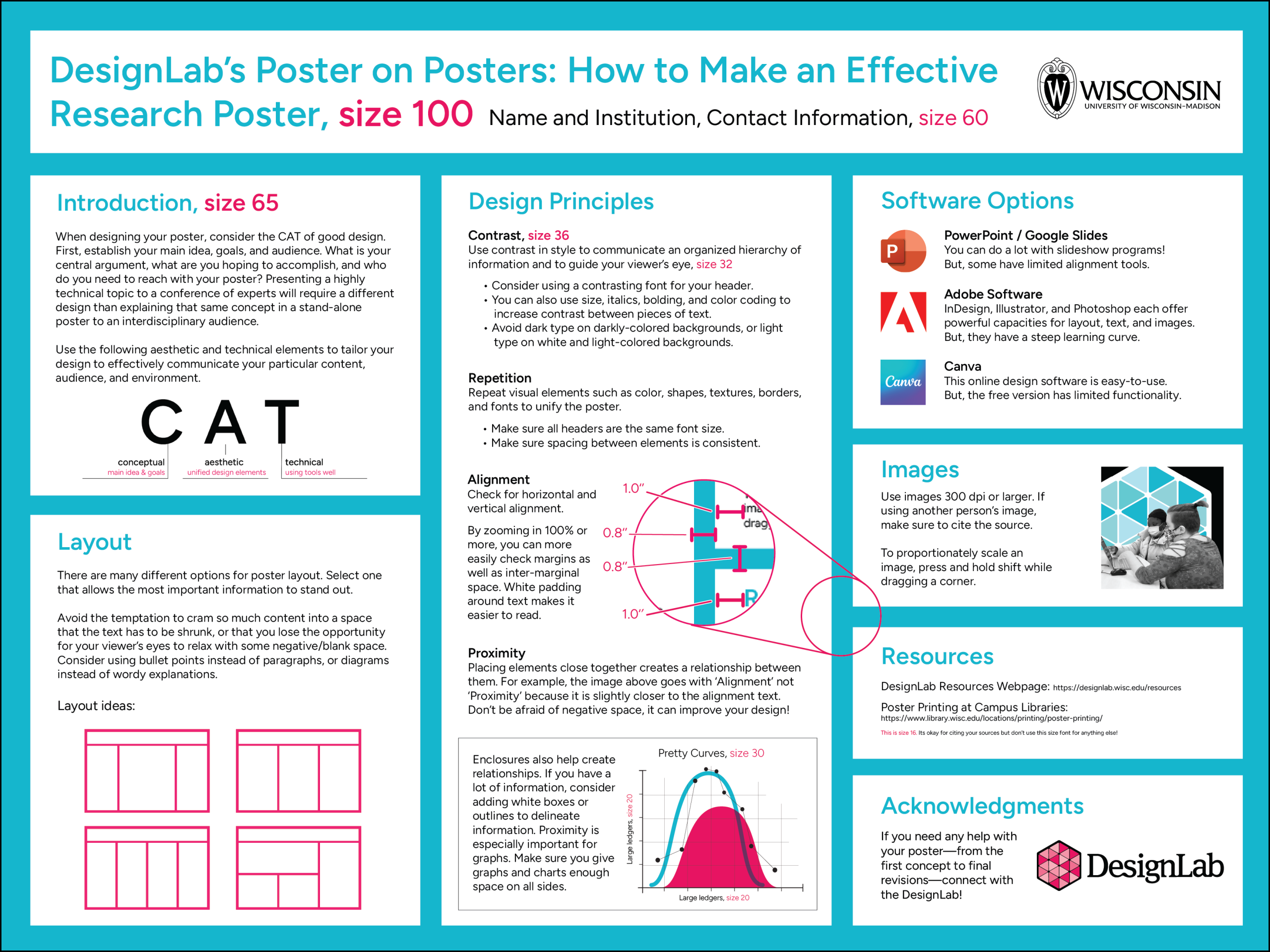
This poster was designed to mimic the typical research poster style with a cyan background color and white bounding boxes for the text. It is also meant to be a guide to making research posters. You can find more information about sizing and layout by clicking on the poster to see it full size.
DesignLab’s Standard Research Poster 2:
(with a white background and no bounding boxes)
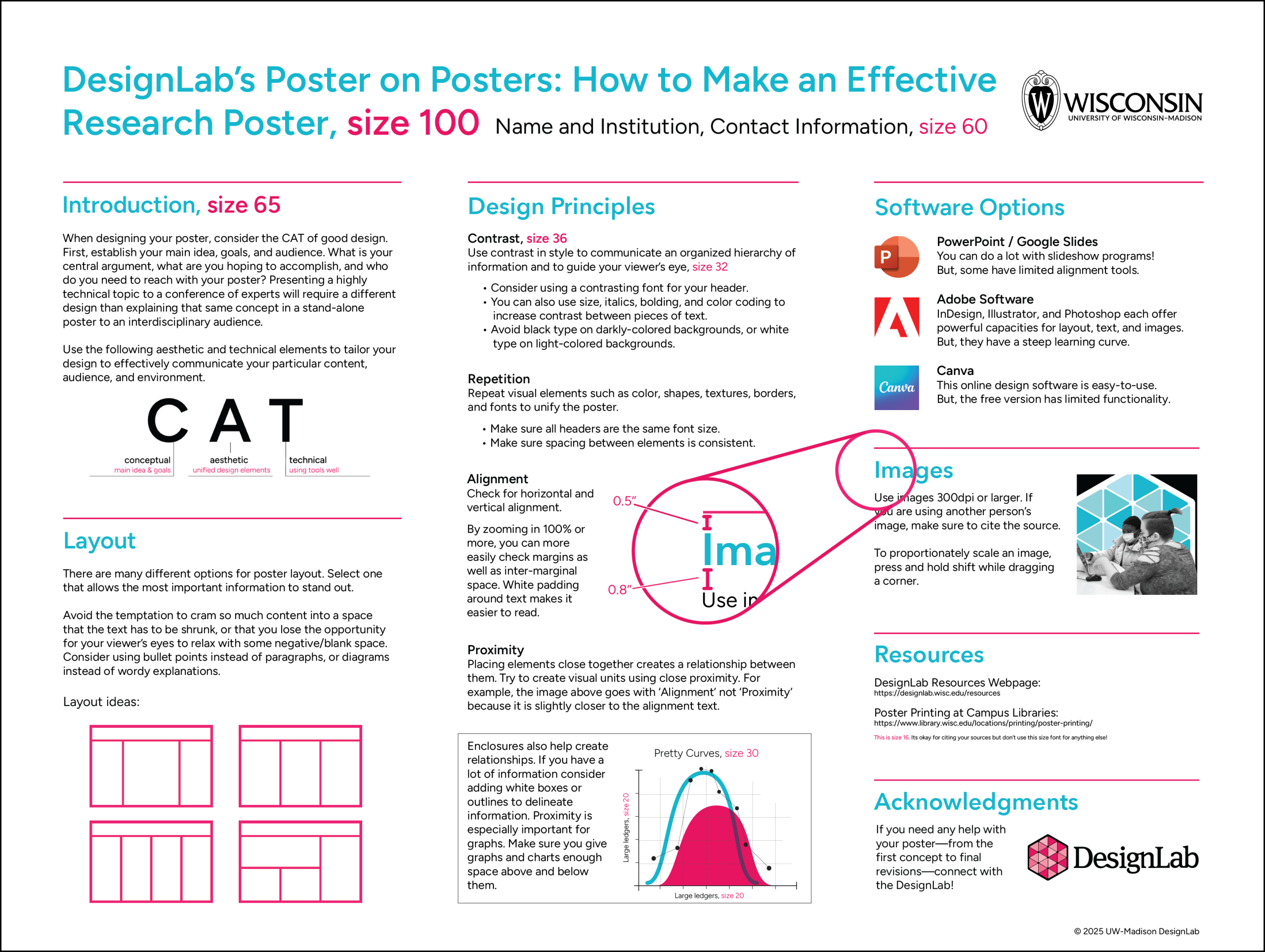
This poster was also designed to mimic the typical research poster style, but with a white background and no visible bounding boxes. It is also meant to be a guide to making research posters. You can find more information about sizing and layout by clicking on the poster to see it full size.
DesignLab’s “Better” Poster 1:
(simple color)
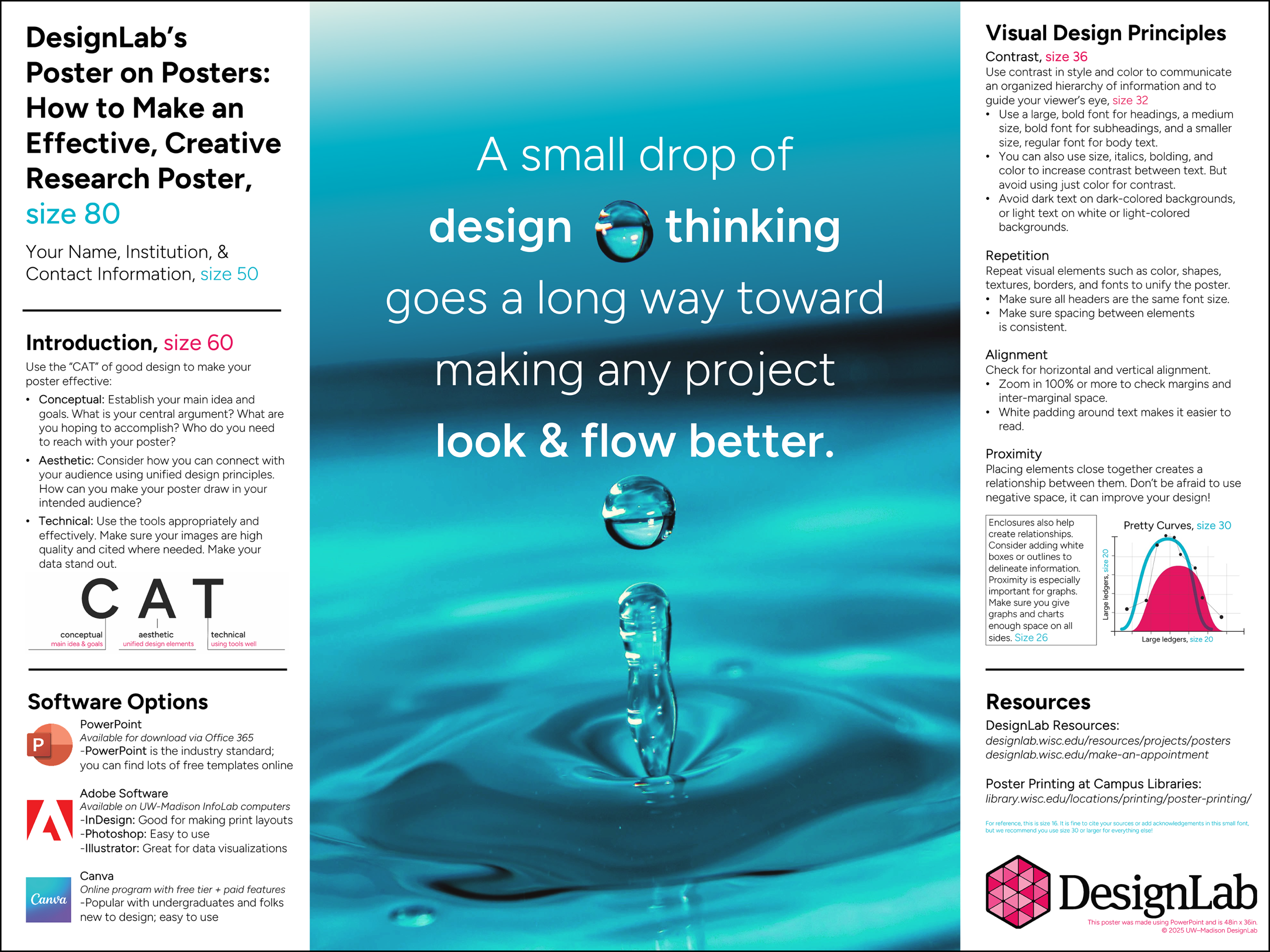
This poster was designed to break from the norms of a research poster. The main point is emphasized largely in the center, with just the basic information along the sides. From a design perspective, this poster is much better than the standard posters above at streamlining information and enhancing visual appeal. However, consult with other researchers and colleagues in your field before trying to deviate from the norms of research posters in your field.
DesignLab’s “Better” Poster 2:
(full color)
This poster was designed to break from the norms of a research poster. The main point is emphasized largely in the center, with just the basic information along the sides. From a design perspective, this poster is much better than the standard posters above at streamlining information and enhancing visual appeal. However, consult with other researchers and colleagues in your field before trying to break from the norms of research posters.
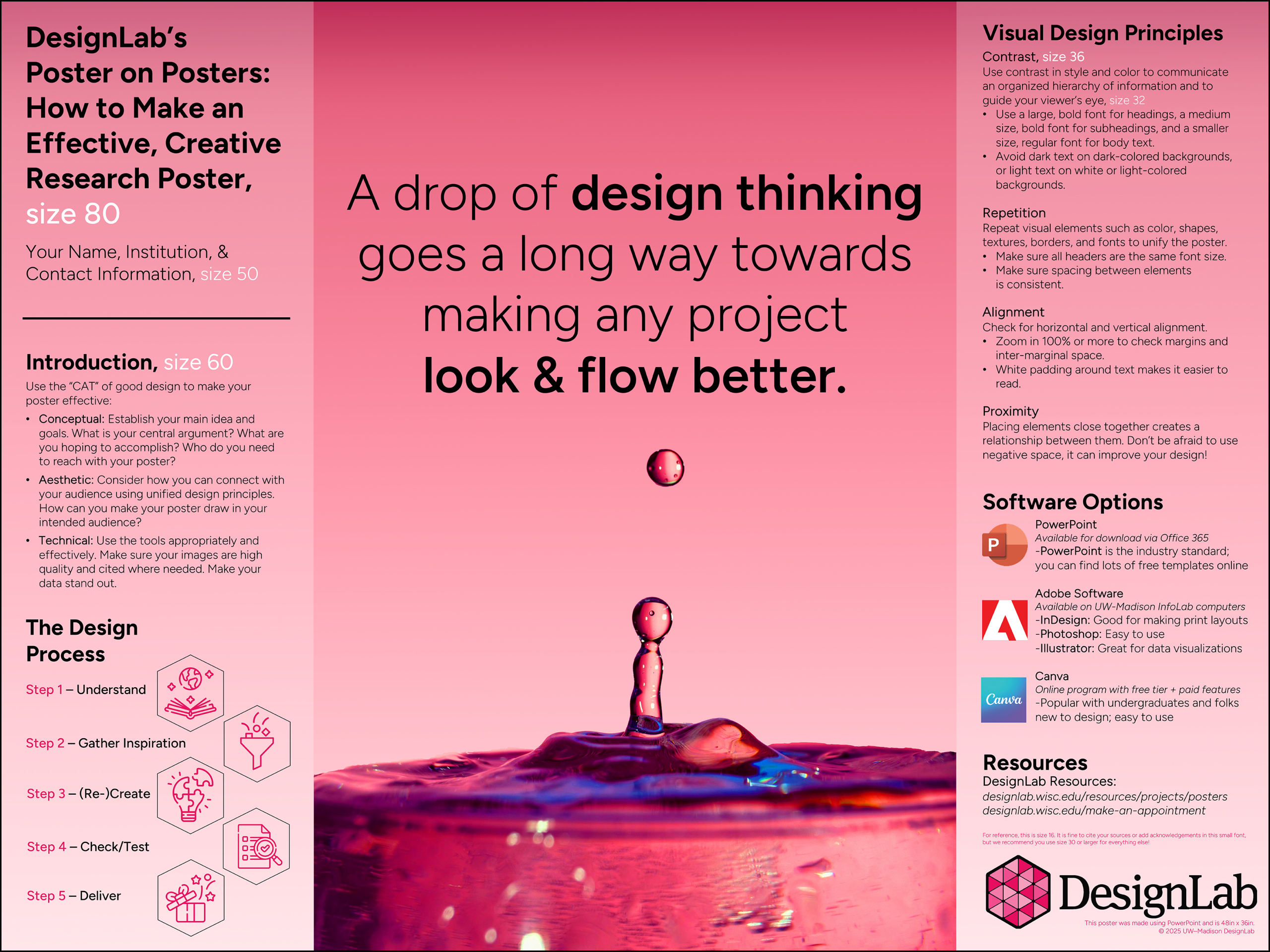
DesignLab’s Creative Poster 1:
(without graphs/charts)
This poster was designed to break from the norms of a research poster. The main point is emphasized in a large section on the left, with just the basic information in the smaller section on the right. From a design perspective, this poster is much better than the standard research posters at streamlining information and being more visually appealing. However, consult with other researchers and colleagues in your field before trying to deviate from the norms of research posters in your field.
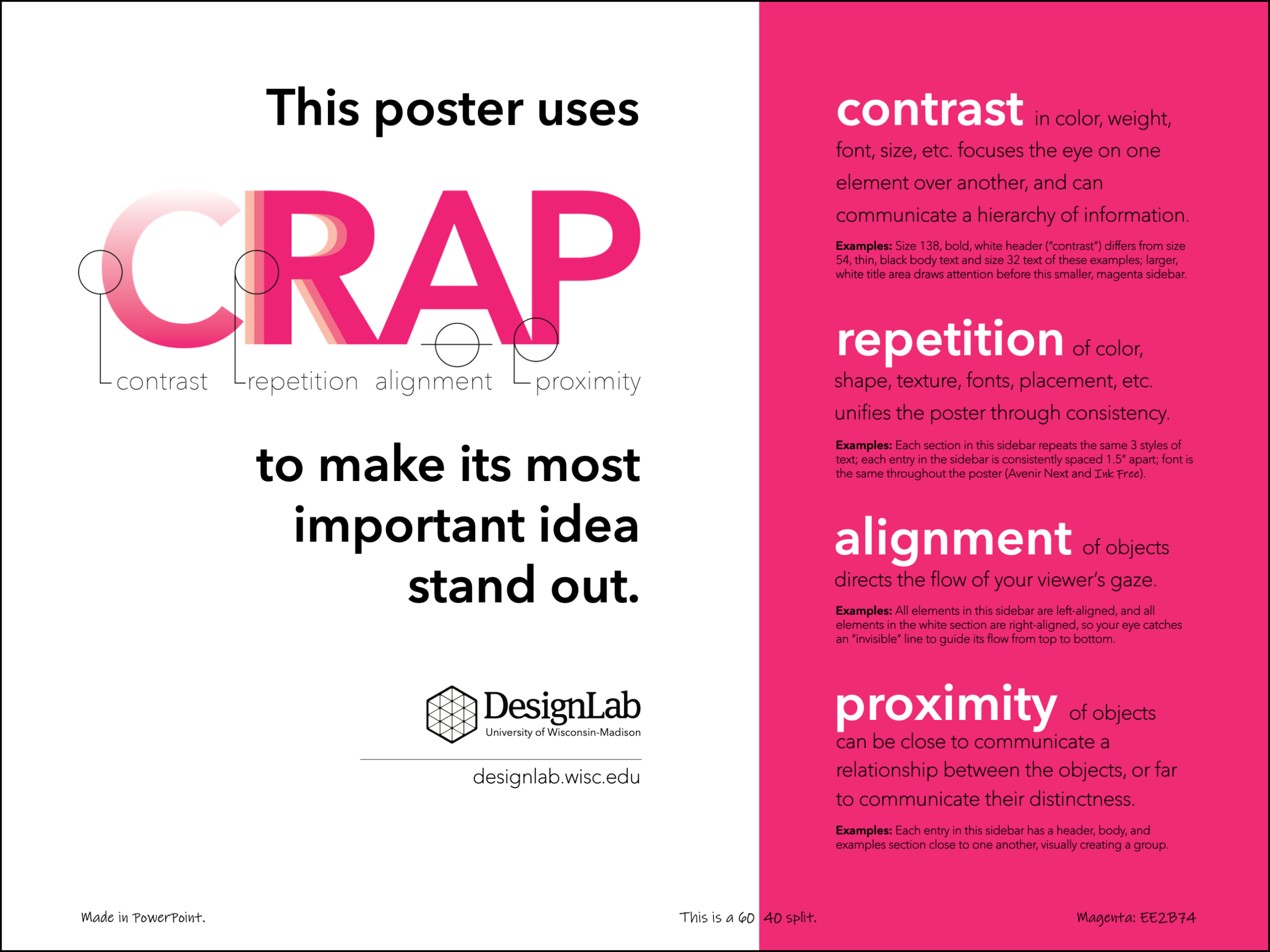
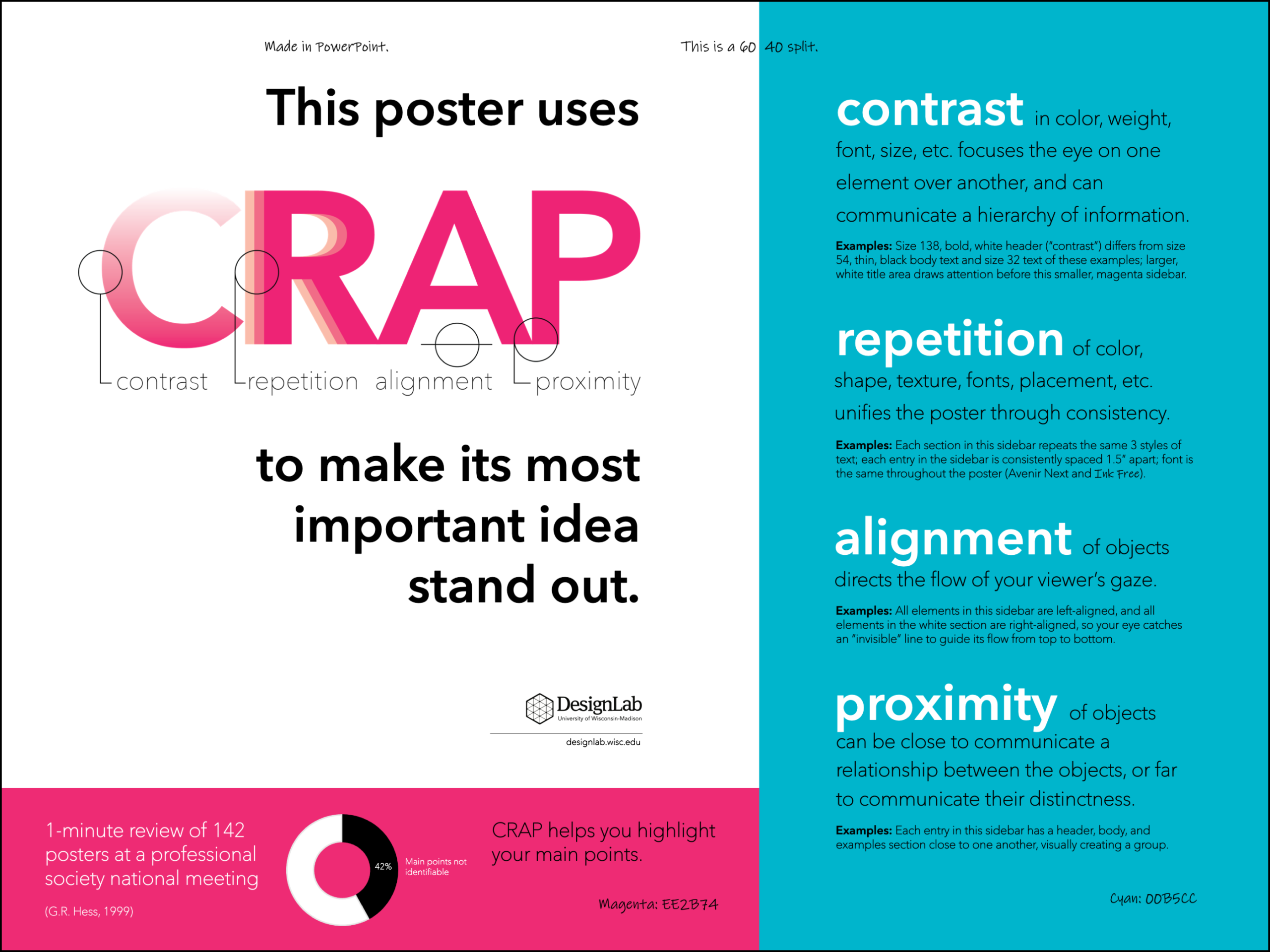
DesignLab’s Creative Poster 2:
(with a graph)
This poster was designed to break from the norms of a research poster. The main point is emphasized in a large section on the left, with just the basic information in the smaller section on the right. Unlike Creative Poster 1, which is full of text, this poster also incorporates only one graph. While visuals are good on a poster, too many visuals can bog down the viewer and keep them from the main point of your research. Always place visuals with intention, and when in doubt, keep it to one.
Student-Made Examples
Poster
Map / Poster
Printing Posters at UW–Madison
Please note: DesignLab does NOT offer any printing services. Below is a list of places on campus where you can print your posters.
UW Libraries provides UW–Madison students, faculty, and staff access to wide-format poster printers at three locations. Orders can be placed online.
DPPS has 3 locations offering printing services to departments, faculty, campus guests, researchers, staff, state and federal government agencies, and students. All orders are submitted online through their ordering form.
Types of Print Material Available: Semi-gloss, Matte, Vinyl, and Polyester Cloth (with mounting and framing options). Additionally, they have Event Display poster options in various sizes.
Size Limit: Depends on the material. Contact DPPS for more information.
Preferred Formats: PDF, Illustrator, EPS, or TIFF
Payment Options: They accept WisCard, DoIT Number, direct billing to UDDS, or purchase orders for external customers.
Turnaround Time: They can provide a reduced-size printed proof or a PDF proof within 4 hours of receiving a Print-Ready File. Your final poster will be available within 24 hours of DPPS receiving an approved proof. Additional time is required for quantity orders. After-hours poster printing is available when scheduled in advance during their office hours.
Media Solutions is a fee-for-service department within the School of Medicine and Public Health. They are located in Room 1375 of the Health Sciences Learning Center at 750 Highland Ave. They focus on serving the Health Sciences faculty, staff, and students; however, they are available to work with all departments throughout the UW–Madison campus.
Types of Print Material Available: Archival Matte Paper & Fabric (poly-fabric) material
Size Limit: 44-inch Paper and 42-inch Fabric maximum height, no width limit
Preferred Formats: If made in PowerPoint, submit a PDF and PPT file. If made in another program, only a PDF file is required.
Payment Options: University Funding (UDDS Funding String) or personal payment by check. No credit or debit cards accepted.
Turnaround Time: 3 working days – Less than 48 hours is considered a rush and will incur a 50% extra charge
Troubleshooting Poster Printing at UW–Madison
(Digital Publishing and Printing)
Easiest Option and Highest Quality: PDF (acronym for “Portable Document Format”) is used for saving files that need to be easily shared and printed. PDF files embed all of the raster and vector images, charts/graphs, colors, and fonts within the file, so anyone who views them will be able to see the same thing you see, and thus print the same from computer to computer. PDF files can have multiple layers within the file, and PDF files typically retain transparency when printed (although if you are running an outdated program, this may not be the case).
(for College, Steenbock, & MERIT Library printing)
Highest Quality: TIFF (acronym for “Tagged Image File Format”) is used for storing raster graphics. This format is popular among graphic artists, publishers, and photographers and is commonly used for print media. TIFF files can have multiple layers, and they retain transparency when printed.
Middle Quality: PNG (acronym for “Portable Network Graphic”) is commonly used to store web graphics and digital photographs. PNG files have lossless compression (similar to .GIF) for smaller file size. PNG files are flattened (non-layered), but they retain transparency when printed.
Lowest Quality: JPEG – acronym “Joint Photographic Experts Group,” is a standard image format for containing lossy and compressed image data, leading to the smallest file size, but the lowest quality image. JPEG files have a flattened (non-layered) image and do not support transparency, which is converted to the closest color or to white.
(for College, Steenbock, & MERIT Library printing)
Exporting PowerPoint (.PPT) files to image files can lead to a loss in resolution or change in size, especially with PowerPoint for Mac, but also with PowerPoint for Windows. We recommend the following process for converting files from .PPT to .TIFF/.PNG/.JPEG:
- In PowerPoint, go to File > Export As and select PDF** from the format list.
- Save the file as a PDF.
- Open the PDF using Photoshop.
- In Photoshop, save the PDF as TIFF/PNG/JPEG.
As far as we have tested, you cannot use Adobe Acrobat or other online programs to convert the PDF file to TIFF/PNG/JPEG. If you do not have Photoshop, it should be available in any campus computer lab and on checkout laptops. You can also do the same option with Preview on Mac computers, but be aware that the resolution doesn’t always stay at 300 pppi.
**Files exported as PDF from PowerPoint maintain their dimensions and are exported at a resolution of 300 ppi, which is relatively high and suitable for printing.